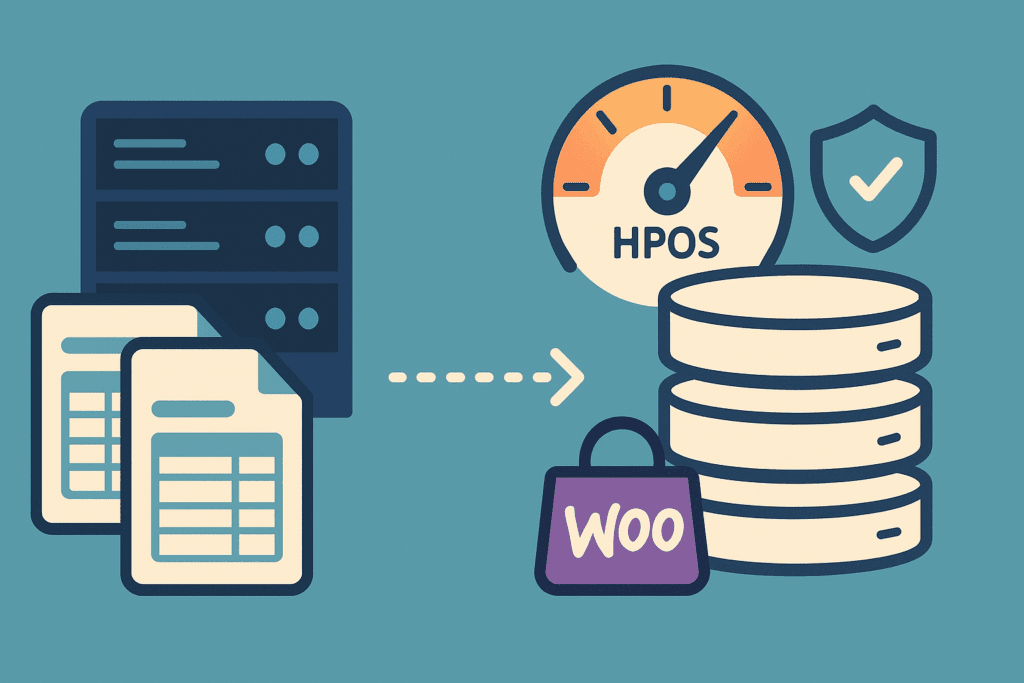
You logged into your WooCommerce dashboard and there it was: a notice about High-Performance Order Storage. Or a plugin update mentioned “HPOS compatibility” in its changelog, and now you are wondering whether your store is missing something, or about to break.
Good news first: HPOS is not an emergency, and switching to it is a normal, well-supported change. But it touches the one thing your store cannot afford to lose, which is your orders. So it deserves a plan rather than a quick click.
This guide explains what HPOS actually is, how to tell whether your store is ready, who can leave it for now, and the step-by-step way we would switch a store over without putting a single order at risk.
What HPOS is, in plain English
WooCommerce is built on WordPress, and WordPress was built for blog posts. For most of WooCommerce’s life, every order was stored as a kind of post, with all its details (the customer, the address, the totals, the payment method) scattered across the general-purpose tables WordPress uses for posts and their extra data.
That works, but it is a bit like keeping your sales ledger in the same filing cabinet as your newsletters. High-Performance Order Storage moves orders into their own dedicated tables, designed specifically for order data. Orders stop sharing space with your pages, blog posts and products.
The point of the change is a cleaner, more efficient home for order data, which matters more as a store grows and as more order history piles up. It is also where WooCommerce is heading: new features are built with this storage in mind.
Do you already have it?
Possibly. HPOS has been the default for new WooCommerce stores since late 2023 (WooCommerce 8.2). If your store was set up after that, you are probably already on it. If your store is older, it likely still uses the classic storage until someone switches it.
To check, go to WooCommerce > Settings > Advanced > Features. You will see which order storage your store is using, and the option to turn on compatibility mode.
How plugin compatibility works
This is the part that actually decides whether switching is safe for you. Most stores run a handful of extensions that read or change orders: payment gateways, shipping tools, invoicing, subscriptions, accounting connections. Each of those needs to work with the new tables.
WooCommerce handles this by asking extensions to declare whether they are compatible with HPOS. The extension’s developers make that declaration themselves. When an extension declares compatibility and reads orders through WooCommerce’s own order functions (rather than reaching into the database directly), it works whichever storage your store uses.
Our own free plugin is a simple example. Luminos Autocomplete Orders, which moves paid WooCommerce orders to Completed automatically, declares HPOS compatibility and uses the WooCommerce order API, so it works with both HPOS and the classic storage. That is what “compatible” looks like from the inside: the plugin never needs to care where the orders live.
The warning worth reading
On the Features screen, WooCommerce shows a warning listing any active plugins that have not declared HPOS compatibility. Read that list carefully before you do anything else.
A plugin on that list is not necessarily broken. It may simply not have said anything yet, or it may not touch orders at all. But it is your to-do list: for each one, check for an update, look at the developer’s documentation, or ask them directly. Anything that handles orders, payments or shipping should be cleared before you switch.
Who can skip this for now
Not every store needs to act this month. You can reasonably leave it if:
- Your store is already on HPOS. If it was set up recently, check the Features screen and you may find there is nothing to do.
- A plugin you depend on is not compatible yet. If your subscriptions tool, your shipping integration or your payment gateway is on the warning list with no fix available, wait. Switching first and hoping is the wrong order.
- You are heading into your busiest season. Do this in a quiet stretch, not the week before a big sale. It will still be there in a month.
- Your store is small and running happily. If orders are few and everything works, there is no rush. Plan it into your next round of maintenance rather than squeezing it in.
What we would not do is ignore it forever. Staying on the old storage means relying on every extension to keep supporting it, and over time the WooCommerce world is moving the other way.
A quick decision table
| Your situation | Our recommendation |
|---|---|
| New store, Features screen already shows HPOS | Nothing to do. Just keep plugins updated. |
| Older store, no plugins on the incompatible list | Plan the switch: staging test, sync, then switch in a quiet period. |
| A few plugins on the list, none of them touch orders | Confirm with each developer, update what you can, then follow the same steps. |
| An order, payment or shipping plugin on the list | Wait for a compatible version, or plan a replacement first. |
| Custom code or integrations that read order data | Have a developer review them before you switch. |
| Busy season coming up | Hold off until afterwards. |
Why you test first, even for a settings change
HPOS is a settings screen and a couple of checkboxes. It is easy to think of it as low risk. But anything that changes how orders are stored is a big change for a store, even when the button is small.
We have seen how this plays out with other updates. On one online store we look after, a page builder update made the editor crash when it was combined with the store plugin. We held that update back until a fix was released, then applied it. The lesson carries straight over to HPOS: big changes to a store go through a test first.
Never switch order storage for the first time on your live store. Prove it on a copy, with your real plugins and your real order flows, then switch for real.
How to switch to HPOS without breaking orders
Here is the sequence we follow. It takes longer than clicking the setting, but every step is there to protect your orders.
- Update everything. Bring WooCommerce and your extensions up to date, since many compatibility fixes arrive in updates.
- Read the incompatible-plugins warning. Work through the list as described above until nothing that touches orders is left on it.
- Take a full backup. Files and database, stored somewhere off the server, and make sure you know how to restore it.
- Make a staging copy. A private copy of your store where you can test without real customers or real payments.
- Turn on compatibility mode on staging. On the Features screen, enable compatibility mode. This keeps the old and new order tables in sync, and WooCommerce copies your existing orders across. Wait until it reports the sync is finished.
- Switch staging to HPOS and test the real order flows. Use the checklist in the next section, not a quick look around.
- Repeat on the live store in a quiet period. Backup, compatibility mode on, wait for the sync to finish, then switch to High-Performance Order Storage.
- Keep compatibility mode on for a while. With syncing still running, the old tables stay up to date, which is what lets you switch back if something turns up later.
- Know your rollback. If something goes wrong, switch the storage setting back to the WordPress posts option while sync is on. Once you are confident everything works, you can turn compatibility mode off.
For the official detail on each setting, WooCommerce keeps a guide to High-Performance Order Storage that is worth having open while you work.
What to test before and after you switch
“The shop page loads” is not a test. The things that break are the things that read or write orders, so test those directly, on staging first and again on the live store after the switch.
- Checkout with every payment method you offer. Card, wallet, bank transfer, anything else. Confirm each order arrives with the right status.
- Order emails. New order, processing, completed and refund emails, to you and to the customer.
- Refunds. Issue a test refund and check it reaches the payment provider and the order.
- Order search and filters. Find an order by customer name, email and order number. Filter by status and date.
- Editing orders. Change a status, add a note, update an address, and check it saves.
- Exports and reports. Run the exports and reports you actually use, and compare totals against what you expect.
- Anything outside WooCommerce that reads order data. Accounting connections, shipping and label tools, inventory or ERP integrations, CRMs. Check that new orders reach them.
- Customer accounts. Log in as a customer and confirm their order history shows correctly.
If any of these misbehave on staging, stop there. Find out which plugin is responsible before you go anywhere near the live store.
Doing it yourself vs getting help
If your store is simple, your plugins are all cleared, and you are comfortable making a staging copy and restoring a backup, you can do this yourself. Follow the steps, test properly, and keep sync on until you are sure.
It is worth getting help if you are not sure what your plugins do with orders, if you have custom code or integrations, if you do not have a staging copy, or if you simply cannot afford a bad day at checkout. Ongoing upkeep matters here too: a store that gets regular, careful updates with a backup taken first is in a much better position for changes like this. That is what our WordPress care plans are for.
We design, build and look after WooCommerce stores, and changes like this are part of that work. If you would like a hand checking your store and planning the switch, have a look at our e-commerce services and tell us what you are running.